
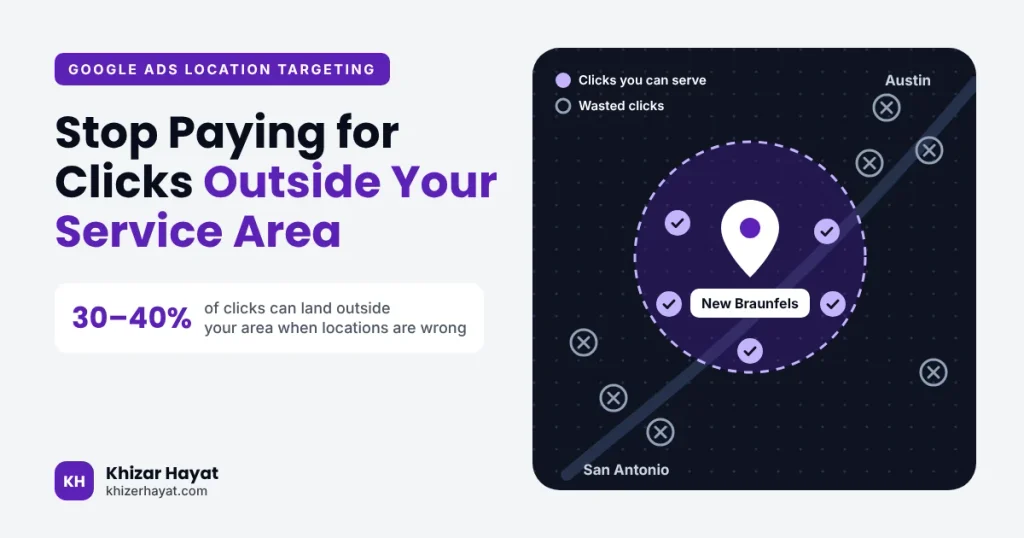
Google Ads location targeting helps you reach potential customers in the areas your business serves. If your settings are too broad, your budget may go toward clicks from people who cannot become customers.
The amount of wasted spend depends on your campaign settings, search demand, and the locations your business can serve. Rather than assuming a fixed percentage of clicks is wasted, review your account data to identify where your ads appear and whether those locations generate suitable leads.
This guide explains how to set Google Ads location targeting for a local business in Central Texas, review location performance, and identify changes worth making.
Step 1: Start with the area you actually serve
Before opening Google Ads, write down where your business provides services and how far you are willing to travel. Consider your service area, travel costs, staffing, and ability to respond to customers.
Your Google Ads targeting should reflect where you can realistically serve customers. It does not necessarily need to match your Google Business Profile settings exactly, because your advertising coverage may differ from your business profile’s service-area configuration.
Then review the locations currently included in your Google Ads campaign.
Common examples of overly broad targeting include:
- A business serving only New Braunfels also targets Austin and San Antonio without intending to serve those markets.
- A business serving selected parts of San Antonio targets all of Central Texas.
- A service provider adds nearby towns without confirming that jobs in those areas are profitable or practical.
Cities such as Bulverde, San Antonio, and Austin should be included only when they fit the business’s actual service coverage and campaign goals.
Step 2: Check the location setting
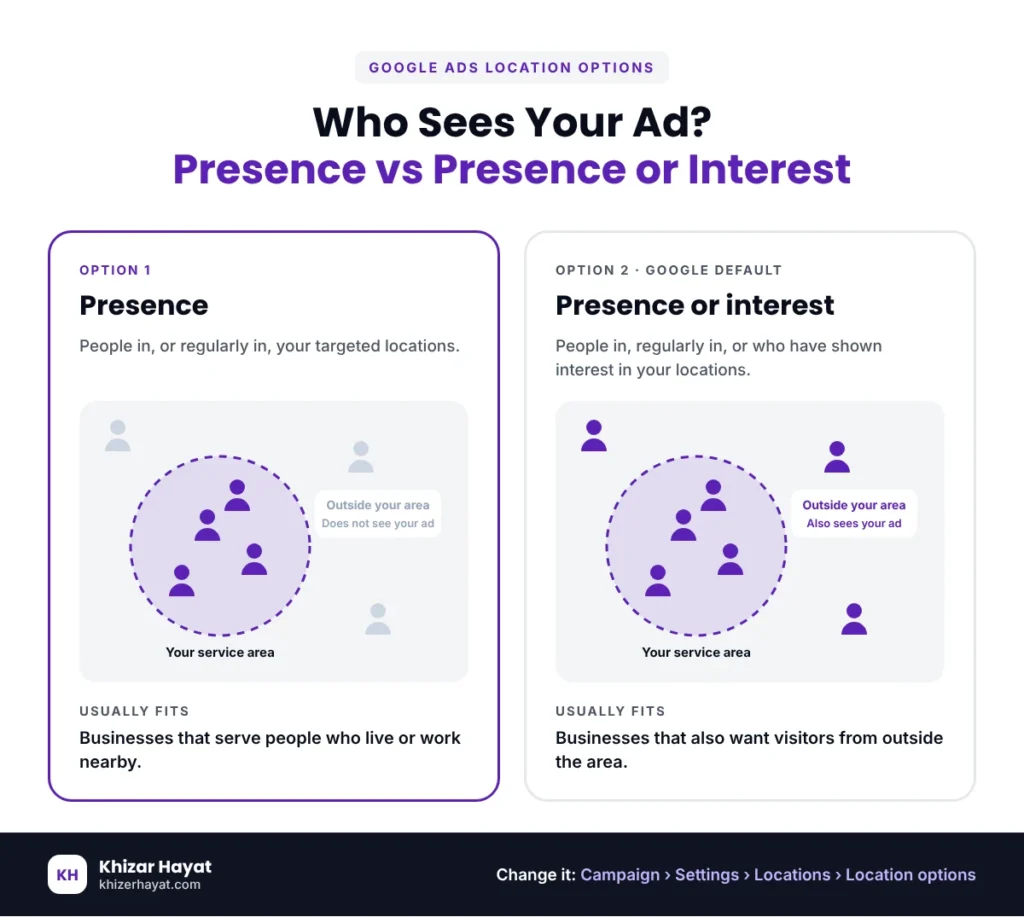
Google Ads provides location options that affect which people may see your ads.
The two main options are:
- Presence or interest: Reaches people who are in or regularly in your targeted locations, as well as people who have shown interest in those locations.
- Presence: Reaches people who are likely to be in or regularly in your targeted locations.
The default setting generally includes both presence and interest. This can be useful for businesses that want to reach people researching a destination or location-related service, even when they are currently elsewhere.
However, a local service business that can only serve customers physically located in a particular area may prefer Presence targeting. The right choice depends on the service, campaign objective, and customer behavior.
To review the setting, open the relevant campaign in Google Ads and look under Settings → Locations → Location options. The exact interface may vary by campaign type.
Google explains these settings in its help article on advanced location options.
Important: Presence targeting can narrow your reach, so do not change the setting automatically without considering the campaign’s purpose. Review performance after making a change.
Step 3: Check where your ads appear
Your campaign settings show which locations you selected. Location reports help you understand how your ads performed across those locations and the locations that matched your ads.
In Google Ads, open the campaign reporting area and look for the Locations report. Review both available views:
- Targeted locations: Shows performance associated with the locations you selected to target.
- Matched locations: Shows performance associated with locations that matched your ads. These can represent users’ physical locations or locations of interest.
Compare the reported locations with the areas your business serves. Look for places that generate substantial spend but few useful leads, as well as areas that consistently produce qualified inquiries.
Google’s geographic performance reporting guide explains how to interpret these reports.
Check where your calls and leads come from
The location report alone may not tell you whether every caller was physically located in a particular area or whether the inquiry was suitable for your business.
Where possible, use Google Ads call reporting, properly configured call tracking, or your customer relationship management (CRM) system to assess lead sources and outcomes.
Review questions such as:
- Which locations generate qualified calls or form submissions?
- Are callers asking for services your business actually provides?
- Are leads from certain areas too expensive or difficult to serve?
- Which locations produce booked jobs or paying customers rather than just clicks?
This helps you make decisions based on lead quality and business outcomes, not simply the number of clicks.
Step 4: Review your search terms and ad messaging
Location targeting is only one part of campaign relevance. The searches that trigger your ads and the wording of your ads also affect the quality of your traffic.
Review your search terms report to identify searches that are unrelated to your services or unlikely to generate business.
For example, a garage door repair company should check for searches related to unrelated repairs, jobs, training, or products it does not offer. Add appropriate negative keywords when they are relevant to the campaign.
Also review your ad copy:
- Clearly describe the service you provide.
- Mention your service area where it helps qualify potential customers.
- Use a call to action that matches the service and landing page.
- Make sure your landing page explains the areas you serve.
If you want to check how your ad may appear for different locations or searches, use Google’s Ad Preview and Diagnosis tool instead of repeatedly searching for your own ad. Do not click your own ads to test them.
Step 5: Match targeting to your type of service
There is no single location setup that works for every local business. Your targeting should reflect how customers buy your service and where you can fulfill the work.
Seasonal services
Businesses with seasonal demand may need to adjust their campaign schedules, budgets, offers, and location coverage as demand changes.
For example, a service provider may prioritize certain areas during a busy season if staffing, travel time, or demand makes those areas more practical.
Review the campaign’s actual performance before expanding or narrowing coverage.
Evergreen services
Businesses offering services throughout the year may maintain a more consistent location setup.
However, consistent targeting does not mean leaving the campaign unchecked. Review location performance periodically and make adjustments when the service area, lead quality, costs, or business capacity changes.
Location targeting should be reviewed as part of regular campaign management rather than treated as a one-time setup.
How long does it take to see an improvement?
There is no guaranteed timeline for improvement after changing location targeting.
The impact depends on the size of the change, available traffic, conversion tracking, competition, and how quickly new data accumulates.
After making a change, compare performance with an appropriate previous period. For a campaign with enough traffic, an initial review after seven days may provide useful early signals. Lower-volume campaigns may need more time before the data supports a reliable conclusion.
Review metrics such as:
- Spend and clicks by location
- Qualified calls and form submissions
- Cost per qualified lead
- Bookings or sales, where tracked
- Search terms and lead quality
Avoid judging a change by clicks alone. The goal is to attract customers the business can serve at a sustainable cost.
Common Google Ads location targeting mistakes
- Targeting a broad region when the business serves only selected cities.
- Adding Austin or San Antonio to a New Braunfels campaign without a clear business reason.
- Leaving the default location option unchanged without understanding its effect.
- Ignoring matched-location reports after the campaign launches.
- Assuming every reported location represents a user’s physical location.
- Treating all calls and form submissions as qualified leads.
- Testing ads by repeatedly searching for and clicking them.
- Running the same targeting throughout the year without reviewing changing demand.
- Making major targeting changes without checking their effect on lead quality and cost.
Google Ads location targeting checklist
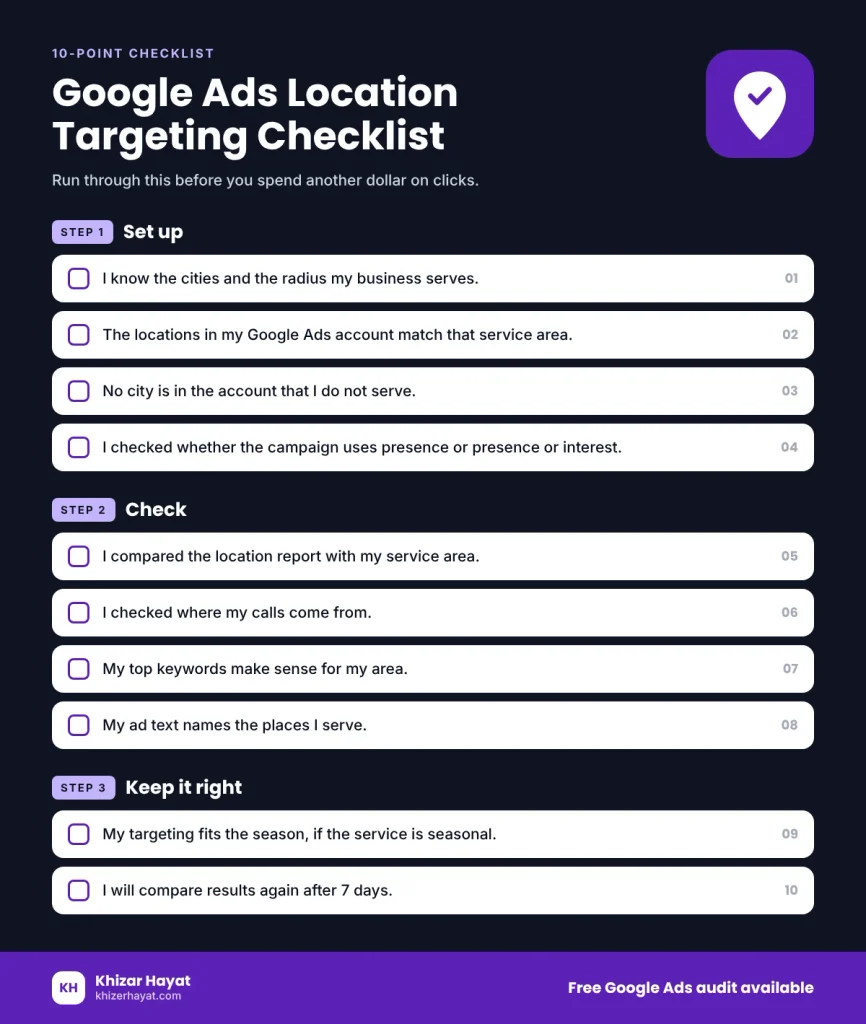
Use this checklist when reviewing a local campaign:
- I have documented the locations where my business can serve customers.
- The campaign’s targeted locations match my business goals and service capacity.
- I have reviewed the Presence or Presence or interest setting.
- I have checked the targeted and matched locations reports.
- I understand that matched locations can include locations of interest.
- I have reviewed search terms for irrelevant traffic.
- My ad copy explains the services I offer and the areas I serve.
- I have a way to evaluate call and lead quality where practical.
- My targeting reflects seasonal demand when relevant.
- I will compare performance after changes using qualified leads and cost, not just clicks.
Want a second pair of eyes on your account?
If you already run Google Ads and suspect your budget is being spent on irrelevant searches or locations, you can book a free Google Ads audit.
I can review your location settings, location reports, search terms, and available call or conversion data to identify potential issues and recommend changes.
If you would prefer ongoing campaign management, explore my Google Ads management service for New Braunfels businesses.